R6Guides · 6 min read
How to Build a Complete Desk Setup Around Your PC
Plan the monitor, arm, peripherals, audio, webcam, networking, UPS and cables as one system, and spend first where you will feel it every day.
PC Parts Reviews Editors · November 9, 2026
The short version
- Spend first on what you touch or look at for hours, starting with the monitor, then the mouse, keyboard and chair.
- Plug monitors into the graphics card, not the motherboard, or the PC will run on integrated graphics or show nothing at all.
- Count USB devices before buying, because a keyboard, dongles, a microphone and a webcam can easily use six ports.
- Size a UPS in watts and choose sine-wave output for PCs with active PFC power supplies.
- Use a dock only if a laptop shares the desk, and check that your tower has USB4 or Thunderbolt before buying one.
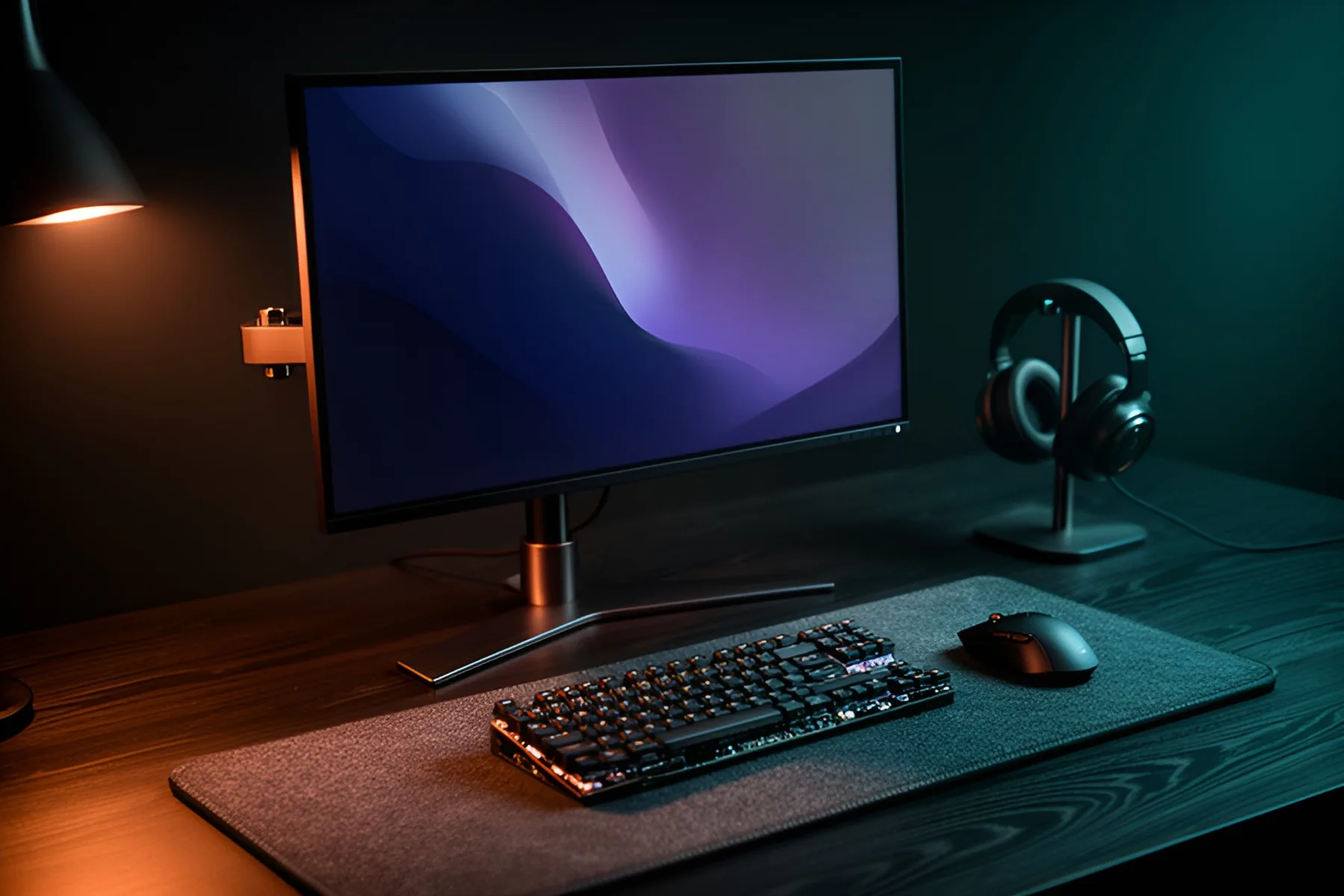
A PC tower is only half the machine you use. The rest is the screen you stare at, the things you touch, the cables holding it together and the power it runs on. Plan those as one system and you avoid the classic problems: a dock that does nothing, a UPS too small to hold the PC, and six USB devices fighting over four ports. Our setup planner helps you match the main pieces.
Spend in this order
Buy first what you see and touch for hours. The items that rarely matter day to day can wait.
| Priority | Item | Connects to the tower by |
|---|---|---|
| 1 | Monitor | DisplayPort or HDMI into the graphics card |
| 2 | Mouse and keyboard | USB, or a wireless dongle |
| 3 | Chair and desk, if yours hurt | None |
| 4 | Headset or speakers | USB, 3.5 mm or Bluetooth |
| 5 | Surge protection or UPS | USB data cable for UPS shutdown |
| 6 | Ethernet or better Wi-Fi | RJ45 on the motherboard, or a Wi-Fi antenna |
| 7 | Microphone | USB, or XLR through an audio interface |
| 8 | Monitor arm | None, but it changes your cable routing |
| 9 | Webcam and lighting | USB, with lights on their own power |
| 10 | Dock or hub | Thunderbolt, USB4 or USB |
Two checks before you buy anything else. Plug monitors into the graphics card and never the motherboard, which is the most common new-builder mistake. And count your USB devices: a keyboard, mouse dongle, headset dongle, microphone and webcam use five ports before you add a controller or stream deck. Entry boards can have as few as four rear USB-A ports, so see our motherboard guide if you are still choosing one.
Monitor and arm
The monitor guide covers how to choose one. If it is older and your PC is not, upgrading it first is usually the right move.
An arm frees up desk space and lets you set the height properly. Check the weight range before anything else, including the minimum. Most monitors in our catalog have a 100 × 100 mm VESA mount and weigh about 4 kg at 27 inches and about 6 kg at 32 inches without the stand. The Secretlab Magnus Monitor Arm covers 2.5 to 8 kg, while the Heavy Duty version needs at least 8 kg, so a standard 27-inch screen would be too light for it. The VIVO V001 handles up to 10 kg at a much lower cost.
Measure your desk's edge and thickness for the clamp. Our monitor arm guide walks through the install.
Keyboard, mouse and pad
Buy for your hands first and features second. A smaller layout, such as a 75 percent or tenkeyless board, leaves more room for the mouse. Hall effect switches with Rapid Trigger, as on the Keychron K2 HE or SteelSeries Apex Pro TKL Gen 3, help in competitive games and do little for typing. Our keyboard and mouse rankings narrow the field.
Shape and weight matter more than sensor numbers now. The Logitech G305 remains a good cheap wireless mouse at 99 g with a 1 kHz receiver, and the Logitech G Pro X Superlight 2 is the lighter, 8 kHz step up. If your wireless mouse stutters, move its dongle to a front port or a short extension cable, because USB 3 devices nearby can interfere with 2.4 GHz signals.
Get a larger cloth pad than you think you need. Razer's Gigantus V2 runs from Medium up to desk-covering 3XL.
Audio and microphone
Most people should start with a headset or headphones. The HyperX Cloud Alpha is a sensible wired starting point. Speakers change how a desk feels: USB-powered Creative Pebble V3s are cheap and simple, and the Edifier R1280DB is a real step up.
For a microphone, start with USB unless you plan to add a second mic. A USB model like the Elgato Wave Neo or HyperX QuadCast 2 S plugs straight into the tower. An XLR dynamic like the Rode PodMic needs an audio interface such as the Focusrite Scarlett Solo 4th Gen, which connects by USB-C. Dynamic mics generally pick up less keyboard noise, which matters on a mechanical board. Plug audio interfaces directly into the tower's rear ports rather than a shared hub.
Webcam and lighting
Lighting matters more than the camera. A 1080p webcam with a light in front of you beats a 4K webcam in a dark room. The Logitech C920s is a 1080p, 30 fps basic that still does the job, the Elgato Facecam MK.2 runs 1080p at 60 fps but needs a separate microphone, and the Logitech Brio 4K adds Windows Hello.
Use a USB 3 port for anything above 1080p. Elgato recommends USB-C 3.0 for the Facecam MK.2's uncompressed modes. For light, an Elgato Key Light gives you a real key source, and a BenQ ScreenBar Halo 2 lights your desk without glare on the screen, drawing power over USB-C.
Networking
Wire the PC if you can. Motherboards in our catalog have 2.5 GbE as a common baseline, and a Cat6a patch cable will carry anything a home connection delivers. If you have several wired devices at the desk, a small switch such as the Netgear GS308 or the 2.5 GbE Ubiquiti USW Flex Mini 2.5G saves running extra cables.
If you must use Wi-Fi, Wi-Fi 7 is common on new boards and routers, and its widest 320 MHz channels only exist in the 6 GHz band. Those signals weaken quickly through walls, so router placement matters as much as the spec. A Wi-Fi 7 router such as the Netgear Nighthawk RS300 covers most homes. Our Wi-Fi 7 explainer has more. Attach the antenna that came with your motherboard, or the PC's Wi-Fi will be weak or absent.
UPS and surge protection
A surge protector guards against spikes, and a UPS adds battery time to save your work and shut down. Size a UPS in watts rather than VA. The CyberPower CP1000PFCLCD delivers 600 W, which many gaming PCs can exceed at peak, while the CP1500PFCLCD delivers 1,000 W. Estimate your PC's peak in the PC builder, and add your monitor.
Choose sine-wave output. PCs with active PFC power supplies can object to the stepped output of cheaper units such as the APC BX1500M, which is why we list the sine-wave APC BR1500MS2 and CyberPower units for gaming PCs. Plug only the PC, monitor and router into the battery outlets. Connect the UPS to the tower with its USB data cable so software can shut the PC down cleanly, and do not plug a UPS into a surge strip. Budget for a battery replacement down the line, and note that CyberPower's three-year warranty includes the battery while APC's BR1500MS2 covers it for 12 months.
Docks and cable planning
Most desktop users do not need a dock. Docks give a laptop one-cable access to monitors, network and power. If a laptop shares your desk, a Thunderbolt dock like the CalDigit TS4 or the Thunderbolt 5 CalDigit TS5 Plus is the clean solution, and a monitor with USB-C power delivery and a KVM can replace it. If you plan to connect a dock to the tower, confirm it has USB4 or Thunderbolt. AMD makes USB4 standard on X870 and X870E and optional on B850.
Plan cables on paper before you buy them. Map every device to a port, then measure the actual run with some slack. Add extra for anything that moves: a monitor arm needs loops at each joint, and a sit-stand desk such as the FlexiSpot E7 travels more than 25 inches between its lowest and highest positions. Check the cable category for certified DisplayPort and HDMI options at the length you need.
Route cables along the arm, down one desk leg and into a power strip mounted under the desk. Keep power and signal cables apart where you can, use a surge protector with a long cord such as the Belkin SRA009, and leave the tower where its intake and exhaust have room to breathe.
Common questions
What should I buy first for a new desk setup?
Start with the monitor, because you look at it the whole time and it decides how good everything else feels. Then buy a mouse and keyboard that fit your hands, and fix your chair if it hurts. Webcams, lights and docks can wait until you need them.
Do I need a UPS for a gaming PC?
It is worth having if your power is unreliable or you work on things you cannot lose. A surge protector is enough if outages are rare. If you buy a UPS, check its watt rating against your PC's peak draw and pick one with sine-wave output.
Do I need a docking station for a desktop PC?
Usually not. Docks exist to give laptops one-cable access to monitors and peripherals. A desktop already has those ports, so a simple powered USB hub on the desk is often all you need.
Should I use Wi-Fi or Ethernet for gaming?
Use Ethernet if you can run a cable, because it is more consistent and has lower latency. Wi-Fi 7 on 6 GHz is very fast when the router is close, but distance and walls affect it more. Keep Wi-Fi as the fallback rather than the plan.
Sources
- CP1500PFCLCD - PFC Sinewave - Product Details, Specs, Downloads | CyberPower · CyberPower
- AMD Socket AM5 Chipset · AMD
- Wi-Fi® (MAC/PHY) | Wi-Fi Alliance · Wi-Fi Alliance
R8Keep reading
Guides · 7 min
Prebuilt vs Custom PC in 2026: When Each One Wins
Memory prices have changed the math. Learn when a prebuilt beats building your own, and how to spot weak parts hiding in any spec sheet.
Nov 9, 2026
Guides · 5 min
How Much RAM Do You Need in 2026?
16 GB is the floor and 32 GB is the target. Choose capacity, DDR5 speed and kit layout, and find out how to buy while memory prices are this high.
Nov 9, 2026
Guides · 5 min
How to Choose a CPU in 2026
Games want cache and heavy work wants cores. Pick between Ryzen 9000 and Core Ultra 200S, weigh socket lifespan, and learn when to keep your chip.
Nov 9, 2026
Bench Notes
One short email a week: price drops worth acting on, launches that matter, and the builds we would actually buy.