R6How-To · 4 min read
How to Enable EXPO or XMP
Turn on your RAM's rated speed in the BIOS, and know what to do if the first boot takes minutes or the system turns unstable afterward.
PC Parts Reviews Editors · November 9, 2026
The short version
- Your memory runs at a slower default speed until you select the EXPO or XMP profile in the BIOS.
- Expect a black screen for a minute or more on the first boot after enabling a profile, and allow ten minutes before you intervene.
- If the system becomes unstable, test with MemTest86, update the BIOS, then drop one speed step instead of adding voltage.
- Leave AM5 SoC voltage at or below 1.3 V, the cap AMD set after some Ryzen 7000 chips burned out.
- Profiles count as overclocking on paper, so read your CPU maker's warranty terms before you rely on one.
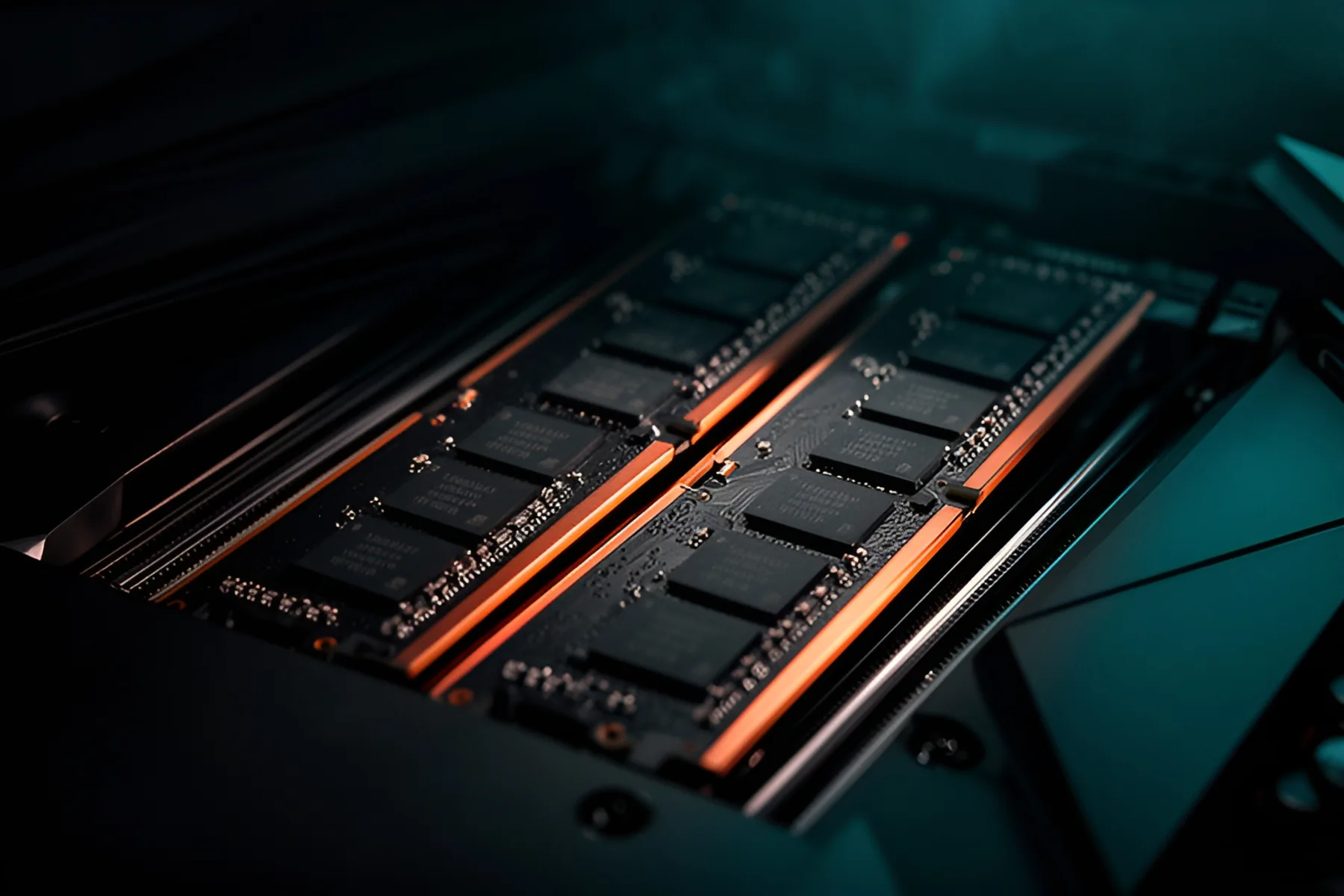
Your DDR5 kit doesn't run at the speed on the box until you tell it to. Left alone, the board uses a conservative default. EXPO on AMD and XMP on Intel are profiles stored on the memory itself, holding the speed, timings and voltage the kit was tested at, and one BIOS setting applies them. Here's how to turn one on, what to expect on the first boot, and how to back out if the system misbehaves.
Before you change anything
Boot at default settings first. On a new build, confirm that the PC posts and that the full capacity appears in the BIOS, so you know the hardware works before you add a variable.
Install two sticks in the slots your manual names, usually A2 and B2, the second and fourth from the CPU. Four sticks are much harder on the memory controller. AMD rates the Ryzen 7 9800X3D at DDR5-5600 with two modules and DDR5-3600 with four, so a four-stick kit may never reach its rated speed. If you're choosing memory now, our RAM guide covers capacity and the memory category lists current kits.
Know what you're asking for. AMD's official speed for Ryzen 9000 is DDR5-5600, and Intel lists up to DDR5-6400 for the Core Ultra 9 285K. A DDR5-6000 kit on a Ryzen CPU is therefore overclocking the memory controller. AMD's terms say operating memory outside its published specifications voids its CPU warranty, even when you use AMD's own tools. Intel says altering clocks or voltage may void warranties. Most builders accept that, but you should know it going in.
Turn the profile on
- Restart the PC and tap Delete or F2 until the BIOS opens.
- Find the memory profile setting. It's usually on the first screen, or in the overclocking or tweaker section. Labels vary: EXPO, XMP, DOCP and A-XMP are all the same idea.
- Choose Profile 1, which normally matches the speed and timings printed on the kit.
- Save and exit, usually with F10.
- Wait through the reboot, which may take a while. The next section explains why.
- Back in Windows, open Task Manager, then Performance, then Memory. The Speed field should show your rated figure.
If the speed still shows the old default, the board may have rejected the profile after a failed training attempt and fallen back. Go back into the BIOS and confirm the setting stuck.
Warning: Don't load a profile and start changing voltages at the same time. If the system fails, you won't know which change caused it.
Buy the sticks you plan to run as a single kit. A profile is tested on the kit it shipped with, so two separate pairs of the same model can behave differently once they share a memory controller. That, along with the extra electrical load of four sticks, is why adding a second pair later so often fails at the rated speed.
What the first boot looks like
When memory settings change, the board runs memory training: a calibration of signal timing for each stick. The screen may stay black while it happens, and a DRAM LED or debug code may stay lit. A minute or more is common on AM5, and big kits or four sticks can take several minutes.
Leave it alone for ten minutes. Pressing reset or cutting power just restarts the process, and repeated failures can make the board fall back to safe settings on its own.
On AM5 boards, a BIOS option called Memory Context Restore saves the training results so that later boots are quicker. It's usually worth turning on. If you get boot failures or memory errors with it enabled, switch it off and accept the slower boot.
If the system becomes unstable
Blue screens in games, apps that crash without reason, corrupted files or a PC that refuses to post all suggest the profile is too aggressive for your particular CPU, board or sticks. Work through these in order, changing one thing at a time.
- If it won't POST, clear the CMOS with the rear button or the jumper in your manual. That returns the memory to defaults. Many boards do this automatically after a few failed boots.
- Confirm the problem. Run one full pass of MemTest86 from a USB stick, or OCCT's memory test in Windows. Any error means the memory configuration is at fault.
- Update the BIOS. Memory compatibility fixes often appear in release notes, so read them and follow our BIOS update guide.
- Drop one speed step. Set the memory clock to the next speed down, for example from DDR5-6400 to DDR5-6000, and keep the profile's timings. A kit that passes testing one step lower is a better long-term setup than one that crashes once a week.
- Remove two sticks if you're running four.
- Ask for a replacement if the kit fails at its rated speed in a supported two-stick setup and on a current BIOS.
Warning: Don't push voltages to chase stability unless you know the limits. Some Ryzen 7000 chips burned out at high SoC voltages, and AMD responded by capping AM5 SoC voltage at 1.3 V. Leave it at or below that.
What speed to aim for
On AM5, DDR5-6000 is the practical target, because it's the speed most CPUs and boards hold while the memory controller runs in step with the memory. Faster kits often gain little in games. AMD has also added an Ultra Low Latency tier to EXPO, which tightens timings at the same speed.
On LGA1851, Intel's XMP 3.0 profiles cover DDR5, and the Core Ultra 200S Plus chips list official support up to DDR5-7200, so a good DDR5-6400 kit is a sensible middle ground.
With memory prices as high as they are, don't pay extra for a faster kit than your platform can comfortably use. Take a capable DDR5-6000 kit for AM5 unless you have a tested reason to go beyond it. Whichever you pick, match the kit to the CPU with the compatibility checks in the builder before you buy, and see why memory costs what it does right now if you're weighing up the timing.
Common questions
Is enabling EXPO or XMP safe?
For a kit used in a supported setup, yes, and it's how most enthusiast memory is meant to run. It is still overclocking, though. AMD says running memory outside its published specifications voids its product warranty even when you enable it with AMD's own tools, and Intel says it may void warranties.
Why does my PC take so long to boot after turning on EXPO?
The board is training the memory, a calibration that runs when memory settings change. It can take a minute or more, and several minutes for large kits. Later boots should be faster, especially with Memory Context Restore turned on.
Should I use Profile 1 or Profile 2?
Start with Profile 1, which usually matches the speed and timings on the box. Only try a second profile if the kit's documentation explains what it does.
Can I use an XMP kit on an AMD board?
Usually, yes. AMD's memory compatibility list shows which kits support EXPO and which are compatible with XMP, and many AM5 boards can read XMP profiles. A kit with an EXPO profile is the safer choice for a Ryzen build.
Sources
- AMD EXPO™ Technology for AMD Ryzen™ Processors for Socket AM5 · AMD
- Intel® XMP (Extreme Memory Profile) RAM Overclocking · Intel
- How to enable XMP to improve RAM speeds · Tom's Hardware
- AMD Ryzen™ 7 9800X3D Desktop Processor · AMD
- AMD Shares Fix for Ryzen Burnout Failures, New BIOSes Coming (Updated) · Tom's Hardware
R8Keep reading
How-To · 7 min
How to Build a PC, Step by Step
The whole build in order, from tools to a stress-tested Windows install, with the mistakes that damage parts flagged and a fix list for a PC that won't POST.
Nov 9, 2026
News · 3 min
Why RAM and SSD Prices Are So High
AI data centers are buying memory faster than factories can make it. Here is what caused the shortage, what is disputed and how to buy around it.
Nov 9, 2026
Guides · 5 min
How Much RAM Do You Need in 2026?
16 GB is the floor and 32 GB is the target. Choose capacity, DDR5 speed and kit layout, and find out how to buy while memory prices are this high.
Nov 9, 2026
Bench Notes
One short email a week: price drops worth acting on, launches that matter, and the builds we would actually buy.