R6Guides · 5 min read
How to Choose an SSD: Speed, NAND, Endurance and Capacity
A PCIe 4.0 TLC drive suits most PCs. Learn when PCIe 5.0, DRAM, QLC and heatsinks matter, and how to split boot, game and scratch storage.
PC Parts Reviews Editors · November 9, 2026
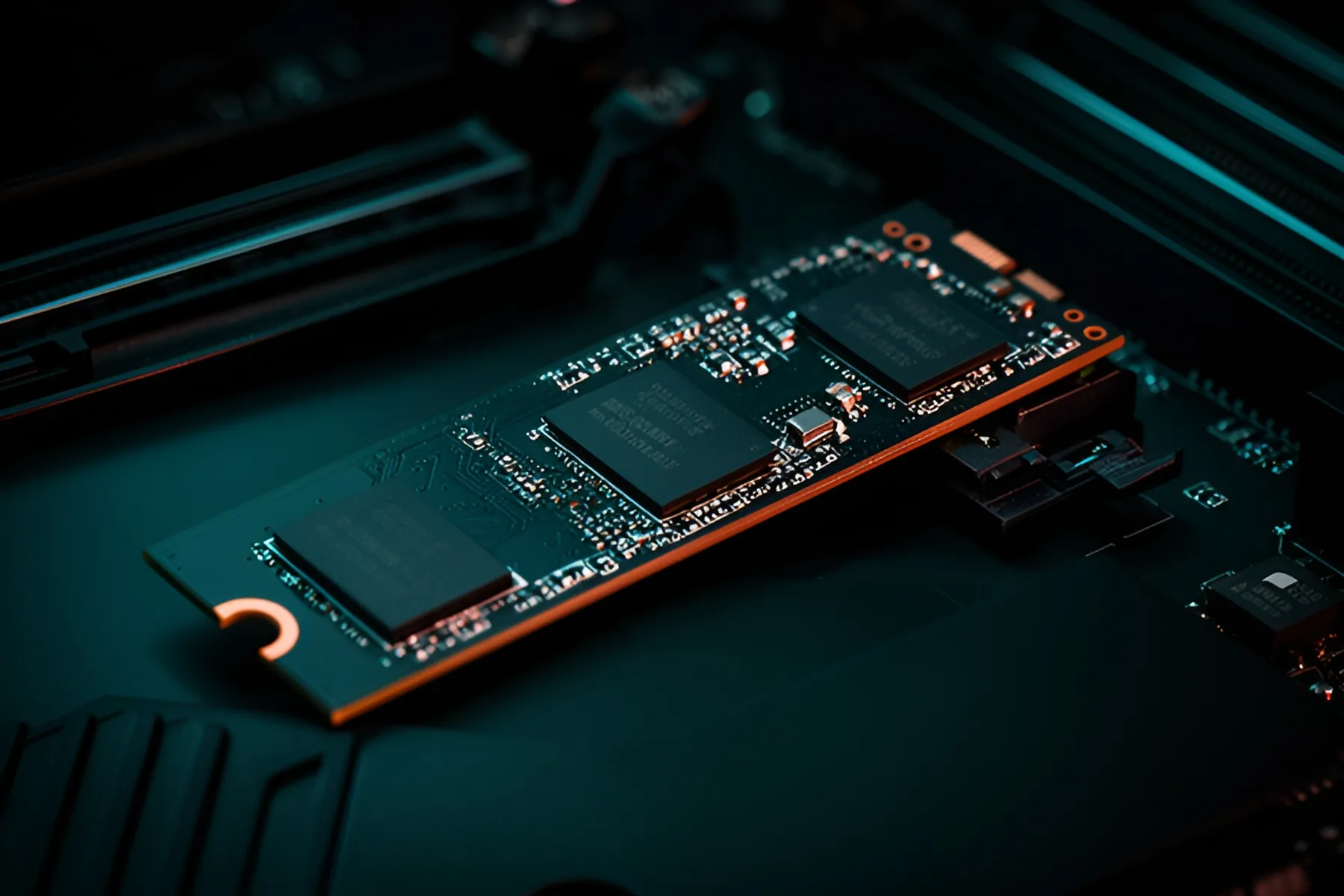
The short version
- Buy a PCIe 4.0 TLC drive of at least 1 TB for most PCs, and move to 2 TB if you keep more than a handful of large games installed.
- Choose PCIe 5.0 only when it costs little more than an equivalent PCIe 4.0 drive or you regularly move very large files.
- Accept DRAM-less TLC for most uses, and pay for DRAM when the drive will handle heavy mixed writes or spend its life nearly full.
- Use QLC for game libraries and light storage, and keep it away from scratch disks and capture work.
- Check that a heatsink fits, and use either the motherboard's or the drive's, not both.
For most PCs, buy a PCIe 4.0 TLC drive of at least 1 TB, and 2 TB if you keep a real game library installed. That covers boot, apps and games with no compromise you will notice. SSD prices are far above where they launched, so this is a poor year to pay extra for a sequential speed number you will rarely reach.
PCIe generations and when they matter
| Interface | Practical peak of current drives | Who it suits |
|---|---|---|
| PCIe 3.0 x4 | About 3,500 MB/s | Older boards, where a newer drive works at this speed |
| PCIe 4.0 x4 | About 7,000 to 7,450 MB/s | Almost everyone |
| PCIe 5.0 x4 | About 14,000 to 14,900 MB/s | Very large file transfers, and buyers who find one at a small premium |
| SATA | About 560 MB/s | PCs with no M.2 slot |
Sequential speed is the number on the box, and it is the least useful one for everyday use. Launching apps and loading games depends mostly on small random reads at low queue depth, and Tom's Hardware's 1 TB charts show the fastest drive only about 70 percent quicker than the slowest in that metric. Sequential speed matters more for drive-to-drive copies, backups and installing or verifying large games, where the top performers can be several times faster.
Games using DirectStorage need an NVMe SSD, and Microsoft's requirement stops there. PCIe 5.0 is not on it.
Here is the rule. If a PCIe 5.0 drive costs within about 10 percent of an equivalent PCIe 4.0 drive, and your board has a PCIe 5.0 M.2 slot that does not take lanes from the graphics card, buy it. On November 9, Samsung's PCIe 5.0 9100 Pro 2 TB cost only a few percent more than its PCIe 4.0 990 Pro 2 TB, so the choice is close at times. When the gap is wider, buy PCIe 4.0. Our PCIe lanes explainer and motherboard guide explain which slots share lanes.
DRAM vs DRAM-less
A DRAM cache holds the map of where data lives on the drive. DRAM-less drives keep that map in a small slice of your system memory instead, through a feature called Host Memory Buffer, and modern controllers make this work well. Many strong drives skip DRAM, including the Samsung 990 EVO Plus, Lexar NM790, TeamGroup MP44 and SanDisk Optimus GX 7100, all TLC. Tom's Hardware treats the lack of DRAM as a minor point on budget drives.
Pay for DRAM when the drive will spend its life nearly full or handle heavy mixed reads and writes, such as a scratch disk or a boot drive on a busy workstation. The Samsung 990 Pro and SanDisk Optimus GX Pro 850X are examples. DRAM-less drives also tend to use less power, which matters more in a laptop than a desktop.
TLC vs QLC
TLC stores three bits per cell and QLC stores four. QLC is denser and usually cheaper, but it wears faster and slows down sharply once its fast cache fills. That makes it fine for data you mostly read, such as a game library, and a poor choice for anything that writes constantly.
Some prebuilts use QLC to hit a price, so check before you assume. If a drive's listing does not say, look up its review.
Endurance
Endurance is rated in terabytes written, or TBW. A typical 2 TB TLC drive in our SSD category is rated around 1,200 TBW, with the Lexar NM790 at 1,500 and the TeamGroup MP44 at 1,000. One popular 2 TB QLC drive is rated at 440 TBW.
Do the math for your own use. At 50 GB written a day, 440 TBW lasts more than 24 years, so normal users will never get close. At 500 GB a day, as on a busy video scratch disk, the same drive would hit its rating in under two and a half years. Most warranties run five years or until the TBW limit, whichever comes first. If you do not know how much you write, your drive's monitoring tool will tell you the total so far.
Capacity planning
Start with what you already use, then add room. Windows and core apps take a modest share, but large games commonly run past 100 GB each, and modern titles keep growing.
- 1 TB: The minimum for a gaming PC, enough for several large titles.
- 2 TB: The practical target for most gaming builds.
- 4 TB: Usually better split into two drives right now.
On November 9, Samsung's 990 Pro cost about 2.8 times as much at 4 TB as at 2 TB, so two 2 TB drives were cheaper than one 4 TB drive with the same controller. If your board has a second M.2 slot, buy what you need today and add another later. Our M.2 install guide shows how.
Keep 10 to 20 percent of the drive free. SSDs use spare space for their fast cache and for wear leveling, so a nearly full drive feels slower. For bulk media and backups, a hard drive, NAS or external drive costs far less per terabyte.
Heatsinks
PCIe 5.0 drives run hot and need cooling. Corsair says the MP700 Pro requires it to reach its rated speeds, and Samsung's 9100 Pro runs warm under load, so a bare drive needs a motherboard heatsink or good case airflow. Most PCIe 4.0 drives are comfortable under a basic motherboard shield.
Use one heatsink, not two. Most ATX boards include a shield for at least the main slot, so a drive with its own heatsink can be wasted or may not fit. Heatsink versions are also thicker: SanDisk's 850X goes from 2.3 mm bare to about 9 mm with a heatsink, and WD's SN8100 from 0.09 inches to 0.38 inches. Check clearance under the graphics card and around large air coolers, and read your board's manual, since some models such as the MSI MEG Z890 Ace note heatsink restrictions on specific slots.
Boot, game and scratch drives
| Role | Buy | Skip |
|---|---|---|
| Boot and apps | TLC, PCIe 4.0, 1 to 2 TB | QLC under 1 TB |
| Game library | TLC or QLC, PCIe 4.0, 2 TB or more | Paying a large PCIe 5.0 premium |
| Scratch and capture | High-endurance TLC with DRAM, separate from boot | QLC |
| Archive and backup | Hard drive or NAS | Paying for NVMe speed you will not use |
| Older PC with no M.2 slot | 2.5-inch SATA, such as the Samsung 870 EVO | Buying SATA for a new build |
SATA once meant savings, but on November 9 the Samsung 870 EVO 2 TB cost more than the much faster 990 Pro 2 TB. Buy it only when your PC cannot take NVMe.
One drive is fine for most people. A separate scratch or capture drive earns its place when you edit video or record gameplay, because it keeps constant writes off the disk Windows runs from. See current picks when you are ready to buy, and read our memory guide if you are budgeting for both during the shortage.
Common questions
Is a PCIe 5.0 SSD worth it for gaming?
Rarely on its own merits. Everyday and game loading work relies on small random reads at low queue depth, where the gap between fast and slow drives is modest. Buy one if the price difference is small and your board has a PCIe 5.0 M.2 slot that does not share lanes with the graphics card.
Do DRAM-less SSDs slow down over time?
Modern DRAM-less TLC drives use a small slice of system memory to hold their mapping tables and perform well in normal use. They tend to fall behind DRAM-equipped drives when nearly full or under sustained mixed writes. Keep some space free and most people will not notice.
How much free space should I leave on an SSD?
Keep roughly 10 to 20 percent free. The drive uses spare space for its fast cache and for wear leveling, so a nearly full drive can feel slower. Buying the next capacity up is easier than managing a full disk.
Do I need a heatsink on my SSD?
PCIe 5.0 drives need one, either from the motherboard or from the drive, and several makers say so directly. Most PCIe 4.0 drives run fine under a motherboard shield. Do not stack two heatsinks, and check clearance around the graphics card and CPU cooler.
Sources
- SSD Benchmarks Hierarchy 2025: We've tested over 100 different SSDs over the past few years, and here's how they stack up. | Tom's Hardware · Tom's Hardware
- Best SSDs 2026: From blazing-fast M.2 NVMe down to budget SATA | Tom's Hardware · Tom's Hardware
- Windows 11 Specs and System Requirements | Microsoft Windows · Microsoft
R8Keep reading
Guides · 7 min
Prebuilt vs Custom PC in 2026: When Each One Wins
Memory prices have changed the math. Learn when a prebuilt beats building your own, and how to spot weak parts hiding in any spec sheet.
Nov 9, 2026
Guides · 6 min
How to Build a Complete Desk Setup Around Your PC
Plan the monitor, arm, peripherals, audio, webcam, networking, UPS and cables as one system, and spend first where you will feel it every day.
Nov 9, 2026
Guides · 5 min
How Much RAM Do You Need in 2026?
16 GB is the floor and 32 GB is the target. Choose capacity, DDR5 speed and kit layout, and find out how to buy while memory prices are this high.
Nov 9, 2026
Bench Notes
One short email a week: price drops worth acting on, launches that matter, and the builds we would actually buy.