R6How-To · 5 min read
How to Connect a 12V-2x6 Cable Safely
Seat the plug fully, leave room before the first bend, choose cables and adapters carefully, and know what the 12V-2x6 revision really changed.
PC Parts Reviews Editors · November 9, 2026
The short version
- Push the plug straight in until it stops, then check all the way around for any visible gap, because a click alone doesn't prove it's seated.
- Leave at least 35 mm of straight cable before the first bend, and make sure the side panel isn't pressing on it.
- The 12V-2x6 revision shortened the sense pins and lengthened the power pins in the header, so a partly seated plug should signal zero power. The cable itself didn't change.
- Use the native cable from your power supply maker or the adapter from your graphics card's box, and avoid third-party angled adapters.
- Inspect the plug after the first weeks of heavy use, and shut down at the first sign of a burning smell or browned plastic.
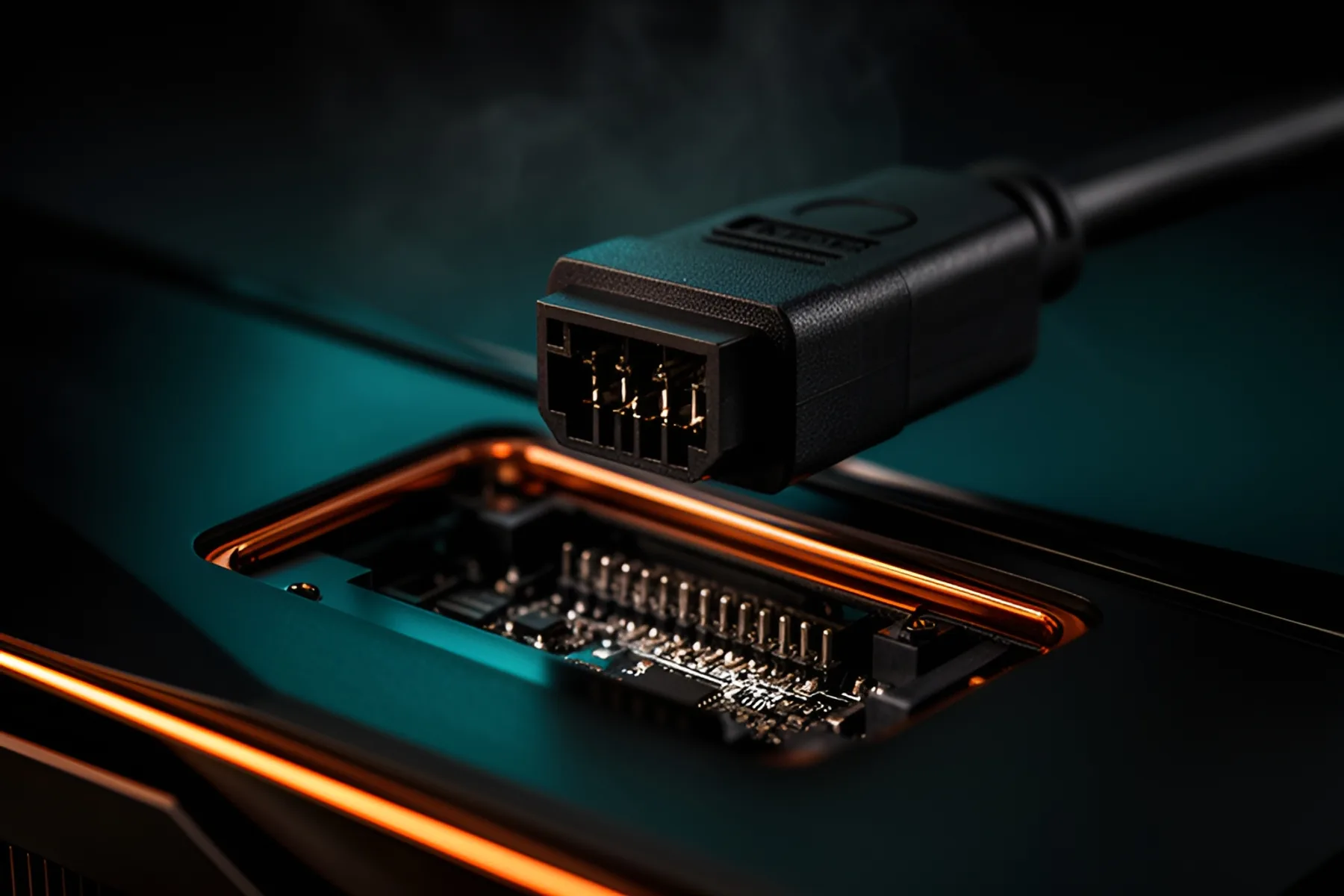
The 16-pin 12V-2x6 connector delivers up to 600 W through a small plug, so it leaves little room for sloppiness. Two things are in your control: whether the plug is fully home, and whether the cable is pulling on it. Get those right, know what the newer revision does and doesn't fix, and you've covered the risks you can actually manage.
What the 12V-2x6 revision changed
12V-2x6 replaced the original 12VHPWR connector. Intel's ATX design guide says the two are mechanically identical in most respects, then lists the updates that matter.
| 12VHPWR | 12V-2x6 | |
|---|---|---|
| Header marking | H+ | H++ |
| Sense pins in the header | Original length | Shortened |
| Power pins in the header | Original length | Lengthened |
| Both sense pins open | No 0 W state defined | Means 0 W, so the card must draw nothing |
| Sustained connector rating | 600 W | 600 W |
| Contacts | 12 power, 4 sideband | 12 power, 4 sideband |
Corsair puts the sense pin change at about 1.5 mm, taking them from roughly 0.45 mm to 1.95 mm behind the edge of the housing. The goal is that the power pins connect first and disconnect last. If the plug is partly out, the short sense pins lose contact, the card reads an open state and it shouldn't draw power.
The cable didn't change. Corsair is explicit: a 12VHPWR cable and a 12V-2x6 cable are the same thing. The revision applies to the header on the graphics card and, on native units, on the power supply. A sound older cable is fine in a newer card.
Two limits are worth stating plainly. The connector is rated for 600 W, not 675 W. The higher figure includes up to 75 W from the PCIe slot. And the revision lowers the risk of a bad connection without removing it. Tom's Hardware has kept reporting melted connectors on RTX 50 cards, and notes that a poor contact on some pins pushes more current through the others. Good seating is still your job.
Seat the plug fully
- Shut down, switch off the power supply and unplug it.
- Inspect both the plug and the socket with a flashlight. Don't use anything with bent pins, debris or discoloration.
- Line up the latch and push the plug straight in, with your thumb on the plug body and not on the wires.
- Keep pushing until it stops moving and the latch engages.
- Look around every side. There should be no visible gap between plug and socket.
- Give the plug body a gentle pull. It shouldn't budge. Intel's guide requires the latch to hold at least 45 N when pulled straight back.
- Recheck after you've routed the rest of the cable and refitted the side panel, since both can shift it.
Warning: Don't rely on hearing a click or on a colored marker. Some cables have a tinted band that shows when a plug isn't seated, which helps, but Tom's Hardware reported heat damage on one of MSI's yellow-tipped cables anyway. The gap check is what counts.
Give the cable room to bend
Keep the first stretch of cable straight. The guidance that came with the original 12VHPWR connector was at least 35 mm of straight run before any bend, and some power supply makers asked for 40 mm. We couldn't confirm a separately published figure for 12V-2x6 from a primary source, so treat 35 mm as a minimum and follow your power supply's manual if it says otherwise.
In practice:
- Measure from the socket on the card to the case's side panel before you buy. The plug plus 35 mm of straight cable takes more room than it looks.
- Fit the side panel and look again. It must not press on the cable.
- Route the cable so its own stiffness isn't pulling the plug sideways.
- Tie the bundle further back along the cable, and don't cinch wires tightly together right behind the plug.
If you can't fit that clearance, the answer is usually a right-angle cable from your power supply maker or a wider case, rather than bending harder. Our guide to choosing a case and cooling covers measuring for this.
Use the right cable
- Best: the native 12V-2x6 cable from your power supply's maker, made for that model.
- Fine: the adapter from your graphics card's box. Plug each 8-pin input into its own cable from the power supply. NVIDIA, for example, lists either three or four 8-pin cables for the RTX 5090's adapter, depending on your setup.
- Check the rating. Not every cable carries the full 600 W. Corsair notes that some lower-wattage ATX 3.1 units, such as the RM650e, come with a cable limited to 450 W.
- Never swap modular cables between power supplies, even of the same brand, unless the maker lists them as compatible. A mismatched pinout can destroy the card.
Warning: Be cautious with third-party angled adapters. In December 2023, CableMod recalled its 90-degree and 180-degree 16-pin adapters and told owners to stop using them after overheating and melting reports. Tom's Hardware reported that NVIDIA and its board partners don't cover damage from third-party adapters. Every extra joint adds another place for a bad contact.
What to check afterward
- After the first boot, shut down and check the seating once more.
- After you move the PC, check it again.
- After a couple of weeks of heavy gaming, shut down, unplug and look for browned or warped plastic around the plug. Sniff for burnt plastic.
- Avoid unnecessary unplugging. Intel's guide specifies contact-resistance testing over just 30 insertion-removal cycles, so this isn't a connector to pull out for fun.
Stop using the PC at once if you notice a burning smell, or new black screens or shutdowns under load. Switch off at the wall and inspect the plug and socket before you do anything else. Don't reinsert a plug that shows heat damage: replace it, and have the card checked if the socket is marked as well.
If you run a very high-power card, consider buying a power supply or cable with its own protection. Corsair's RM850e with the ThermalProtect cable, for example, shuts the graphics card down if the connector runs dangerously hot. Our power supply guide and current rankings cover what to look for in the rest of the unit.
Common questions
Do I need a new cable for a 12V-2x6 graphics card?
No. Corsair says there's no difference between a 12VHPWR and a 12V-2x6 cable. The revision changed the header on the card and, where fitted, on the power supply, so a good existing cable still works.
Is 12V-2x6 rated for 675 W?
No. Intel's ATX design guide lists 600 W of sustained power for the connector. A card can also draw up to 75 W from the PCIe slot, which is where the 675 W total sometimes comes from.
What does the H++ marking mean?
It identifies a 12V-2x6 header and indicates support for 9.2 A per pin or more. The older 12VHPWR header carries an H+ marking instead.
How can I tell if the connector is fully seated?
Look around all sides of the plug with a flashlight. There should be no visible gap between the plug and the socket, and a light tug on the plug body shouldn't move it. Colored indicators can help, but check the gap yourself.
Are 90-degree adapters safe to use?
Be wary of them. CableMod recalled its angled 16-pin adapters after melting reports, and any added joint is another place for a bad connection. If space is tight, prefer a right-angle cable from your power supply maker.
Sources
- PCI-Express (PCIe*) Add-in Card Connectors (Recommended) - 2.1a - ID:336521 | ATX Version 3 Multi Rail Desktop Platform Power Supply · Intel
- Native 12V-2x6 vs 8-pin to 12V-2x6 - what is the difference? · CORSAIR
- 16-Pin Power Connector Gets A Much-Needed Revision, Meet The New 12V-2x6 Connector · Tom's Hardware
- MSI's 'secure' yellow-tipped RTX 5090 12V-2x6 cable is still vulnerable to melting, user report suggests · Tom's Hardware
- Nvidia's problems with melting GPU connectors intensify · Tom's Hardware
R8Keep reading
How-To · 7 min
How to Build a PC, Step by Step
The whole build in order, from tools to a stress-tested Windows install, with the mistakes that damage parts flagged and a fix list for a PC that won't POST.
Nov 9, 2026
How-To · 4 min
How to Apply Thermal Paste on AM5 and LGA1851
How much paste to use, where to put it on current AMD and Intel CPUs, how to clean off the old layer, and when repasting is worth doing.
Nov 9, 2026
Guides · 5 min
How to Choose a Power Supply: Wattage, ATX 3.1 and Warranty
Size your PSU from real peak load, choose ATX 3.1 with a native 12V-2x6 cable, and learn what efficiency badges and warranties actually prove.
Nov 9, 2026
Bench Notes
One short email a week: price drops worth acting on, launches that matter, and the builds we would actually buy.