R6How-To · 4 min read
How to Upgrade a Prebuilt PC
Find out which parts in your prebuilt are standard before you buy anything, what's usually safe to swap, and how upgrades affect the warranty.
PC Parts Reviews Editors · November 9, 2026
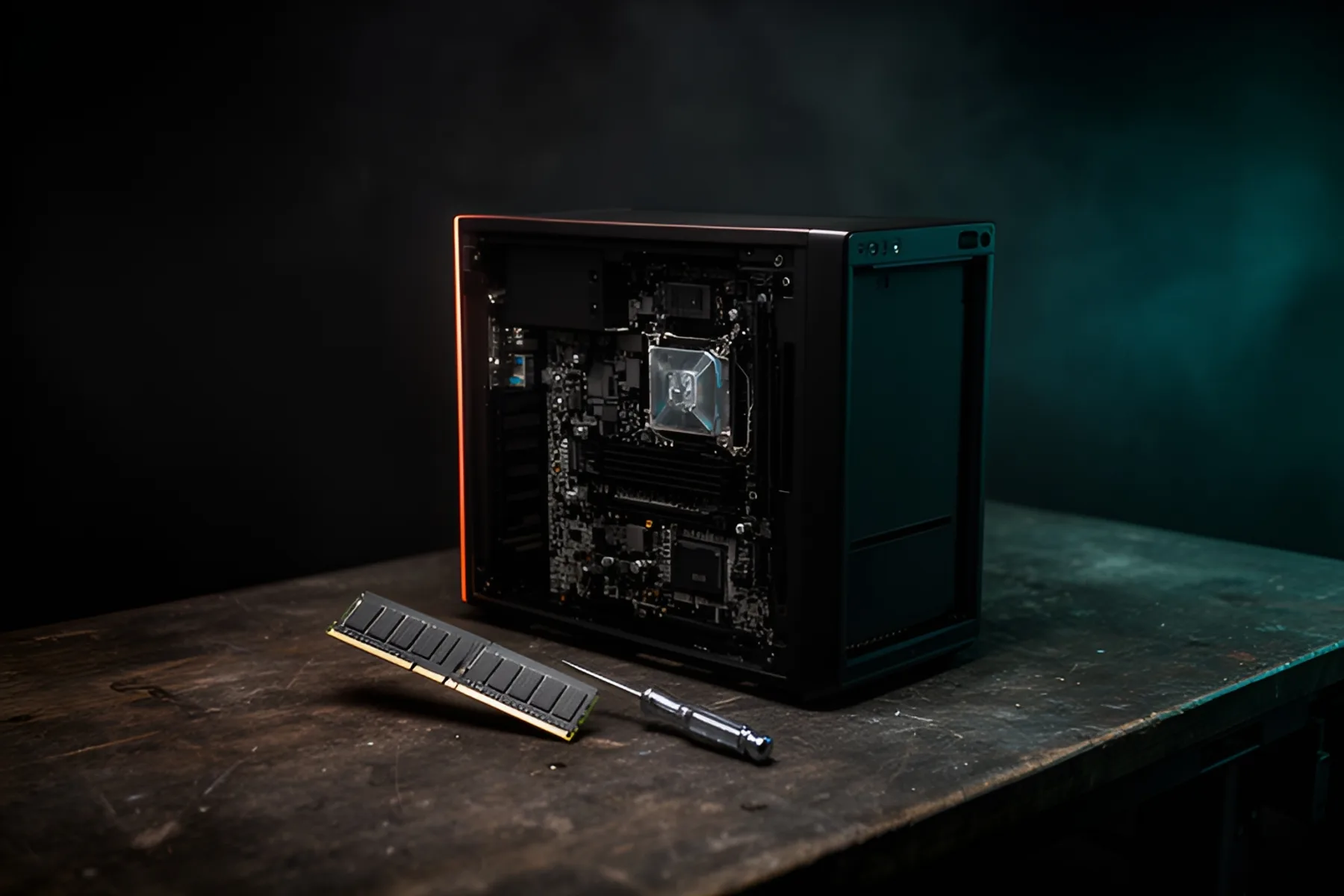
The short version
- Look up your exact model and open the side panel before buying parts, since many big-brand desktops use custom boards or power supplies.
- Memory, M.2 storage and case fans are usually safe upgrades. A graphics card needs a check of wattage, connectors and physical clearance first.
- Treat a motherboard or power supply replacement in a branded chassis as a last resort, because parts may not be standard and Windows may need reactivating.
- In the US, a warranty generally can't require you to use the maker's own parts, but it can exclude damage your upgrade caused, so keep the originals.
A prebuilt can usually take more memory and storage with no fuss. Whether it can take a bigger graphics card or a new power supply depends on how much of the machine is standard, and some brands make that hard to find out. Identify what you have before you buy anything. With memory and SSD prices where they are, a prebuilt may well have been the cheapest way to get these parts, as our prebuilt versus custom comparison explains, so you want your upgrade money to land on parts that actually fit.
Find out exactly what you have
- Find the exact model. Look for the sticker on the case or the box, then pull up the service manual or spec page on the maker's support site. It often lists the slots, the power supply and what's supported.
- Read the hardware in software. HWiNFO, or System Information in Windows, will give you the CPU, memory configuration and board name, if the maker reports one.
- Open the side panel and take photos. Note the label on the power supply, how many memory slots there are and how many are filled, any free M.2 slots and the space around the graphics card.
Spec sheets vary a lot in how much they tell you. Dell lists the Tower Plus (EBT2250) with two memory slots, both filled on the base configuration, a 460 W power supply and three PCIe slots. Lenovo says the Legion Tower 5i Gen 10 uses a customized B860 micro-ATX board. Dell's Alienware Aurora spec sheet gives no motherboard model at all. NZXT's Player systems use standard parts, which is much simpler to plan around.
Signs a part is proprietary
| Part | Standard looks like | Warning signs |
|---|---|---|
| Motherboard | ATX, micro-ATX or mini-ITX, with a retail model name | Odd shape, connectors crowded on one edge, no named model |
| Power supply | ATX body, 24-pin main connector, replaceable cables | Non-ATX body, unfamiliar main connector, cables hardwired or unusually short |
| Cooler | Socket-standard mounting | Bracket or duct that's specific to the chassis |
| Case | Normal PCIe bracket positions and clear space ahead of the card | Short card clearance or a shroud in front of the GPU |
| BIOS | EXPO or XMP and fan curve settings | Menus with no memory or fan controls |
Don't assume a retail power supply will connect just because the wattage looks right. Dell describes the Tower Plus's unit as a 460 W, 12 V supply, which is a good reason to check what connectors you're dealing with first.
Warning: Never connect a power supply to a board unless you've confirmed both use the same standard. Non-standard pinouts can look almost right and still destroy the board.
What's usually safe to swap
- SSD. Add a drive to a free M.2 slot, or replace the existing one. Follow our M.2 install guide, and check the manual, because some compact prebuilts have only one usable slot.
- Memory. Most desktops use standard DIMMs. Many prebuilts fill every slot with small sticks, so you may be replacing a pair and not adding to it. Match the DDR generation and the maker's listed maximum. Our RAM guide explains how much is worth buying, and current kits are listed here.
- Graphics card. Check three things before you buy: the power supply's wattage against the card maker's recommendation, the connectors the card needs, and the card's length and thickness against the case. Our graphics card guide covers the rest. Entry systems often have very little headroom: Alienware's Aurora base configuration uses a 500 W unit, for example.
- Case fans and cooler. Most case fans are standard sizes. A CPU cooler is fine to replace if the mount is socket-standard, not a custom bracket.
Before you touch anything, shut the PC down, switch off and unplug the power supply, and touch bare metal on the case to discharge static.
What usually isn't worth changing
- The motherboard. Custom boards often won't fit a retail case layout, and retail boards may not fit the case or front-panel connectors you already have. Microsoft also says that replacing the motherboard means Windows will no longer find a matching license, so you'll have to reactivate.
- The CPU. Stick to chips listed on the BIOS support page for that exact model, and check that the existing cooler can handle a hotter part.
- A proprietary power supply. If you need more power and the unit isn't standard, buy only the maker's approved replacement, or accept that this is where the machine's limit is.
Once you need all three, you may be better off starting over. A new custom build or another prebuilt can make more sense than rebuilding one piece at a time.
Warranty considerations
Read the warranty document before you open the case. Look for which parts the maker considers customer-replaceable, and whether upgrades need to be done by an authorized service provider.
In the US, the Federal Trade Commission's guide to the Magnuson-Moss Warranty Act says tie-in sales provisions, which state or imply you must use an item or service from a particular company to keep your coverage, are generally not allowed. That doesn't stop a maker from refusing to repair damage your upgrade caused. If you install a part badly and it kills the board, that repair can legitimately be on you. Warranty rules differ elsewhere, so check your local consumer law.
Protect yourself in practical ways:
- Keep every original part and its packaging.
- Photograph the inside of the PC before you change anything.
- Put the original parts back before sending the machine in for service.
- Keep the receipts for what you added, because those parts carry their own warranties.
A sensible upgrade order
- Memory, if you're running out in the apps you use.
- Storage, when you're short on space or still booting from a slow drive.
- Graphics card, after confirming power and clearance.
- Monitor, which may give you more than any part inside the PC. We argue that case in why the best upgrade is usually your monitor.
Before you spend, run your exact model and intended parts past Socket, our build assistant, to catch a clearance or power problem early.
Common questions
Can I upgrade the graphics card in a prebuilt PC?
Usually, if the power supply has enough wattage and the right connectors and the case has room. Many entry prebuilts ship with small power supplies, so check that first. Dell's Tower Plus starts at 460 W, for example, which limits your options.
Does opening a prebuilt PC void the warranty?
Not automatically. Under US federal law, a warranty generally can't require you to use a specific brand of part or service to stay valid, but the maker can refuse to cover damage your work caused. Read your warranty terms, and keep the original parts so you can reinstall them before sending the PC in.
How do I know if my prebuilt has a proprietary motherboard?
Check the spec sheet for a named retail model and form factor. Odd shapes, connectors crowded along one edge and a board with no retail name are warning signs. Lenovo, for example, describes the Legion Tower 5i Gen 10 as using a customized B860 micro-ATX board.
Will Windows stay activated after I upgrade?
Swapping memory, storage or a graphics card shouldn't cause a problem. Replacing the motherboard will, and Microsoft says you'll need to reactivate. Link your digital license to a Microsoft account first.
Sources
- Businessperson's Guide to Federal Warranty Law · Federal Trade Commission
- Reactivating Windows after a hardware change · Microsoft
- Dell Tower Plus Desktop PC · Dell
R8Keep reading
How-To · 7 min
How to Build a PC, Step by Step
The whole build in order, from tools to a stress-tested Windows install, with the mistakes that damage parts flagged and a fix list for a PC that won't POST.
Nov 9, 2026
How-To · 4 min
How to Apply Thermal Paste on AM5 and LGA1851
How much paste to use, where to put it on current AMD and Intel CPUs, how to clean off the old layer, and when repasting is worth doing.
Nov 9, 2026
How-To · 5 min
How to Connect a 12V-2x6 Cable Safely
Seat the plug fully, leave room before the first bend, choose cables and adapters carefully, and know what the 12V-2x6 revision really changed.
Nov 9, 2026
Bench Notes
One short email a week: price drops worth acting on, launches that matter, and the builds we would actually buy.